| Support Category: Transcript |
| Specialist Notes: |
Users can generate and export a Transcript Report directly from their OLU account. The reports will be downloaded as an Excel file, which can be printed or saved as a PDF.
Provide the SR below to users who need a copy of their training history or completion records.
| Standard Response: |
Kindly note that you can run and export a Transcript Report by following the steps below:
1. Log in to your OLU account.
2. Hover over the 'Learning' tab and select 'View Your Transcript'.
3. On your Transcript page, click the three-dot (ellipsis) icon in the upper right corner.
4. Select 'Run Transcript Report' from the drop-down.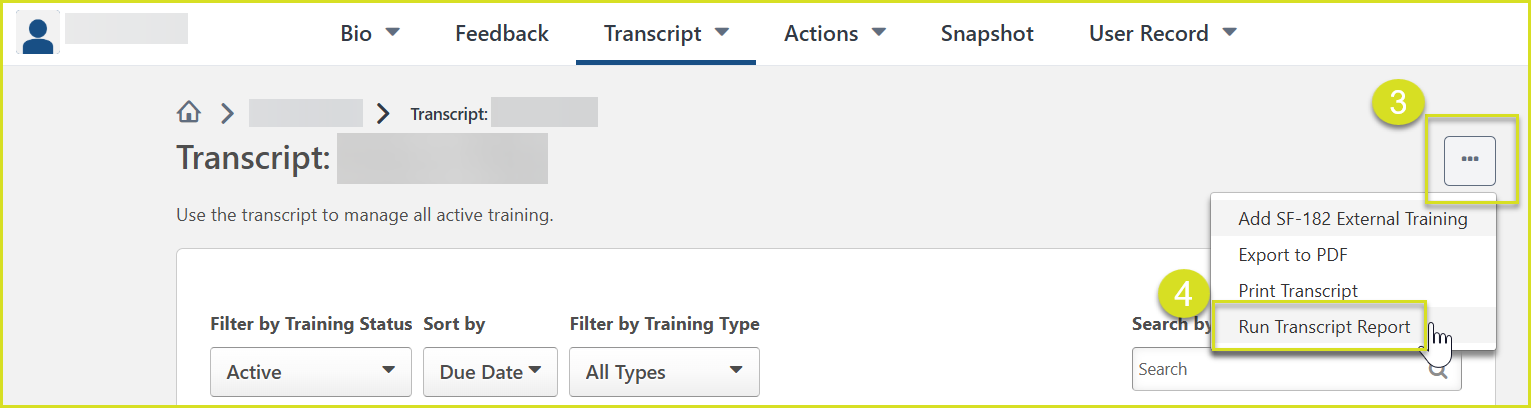
5. If needed, you may use the available filters to narrow your results by training type, date range, status, etc.
6. Under Advanced Options, you may consider selecting options such as:
- Include Associated Training (to show items within a curriculum)
- Include Completed Training Only
7. Click Run Report.
The report will be downloaded as an Excel file, which you can open to print or save as a PDF.
